What about Blobby?!
'Blobby' is a shape created using a set of connected points created with polar coordinates. (Isn't that cool?!, wink!)
xc = r*cos(θ)
yc = r*sin(θ)
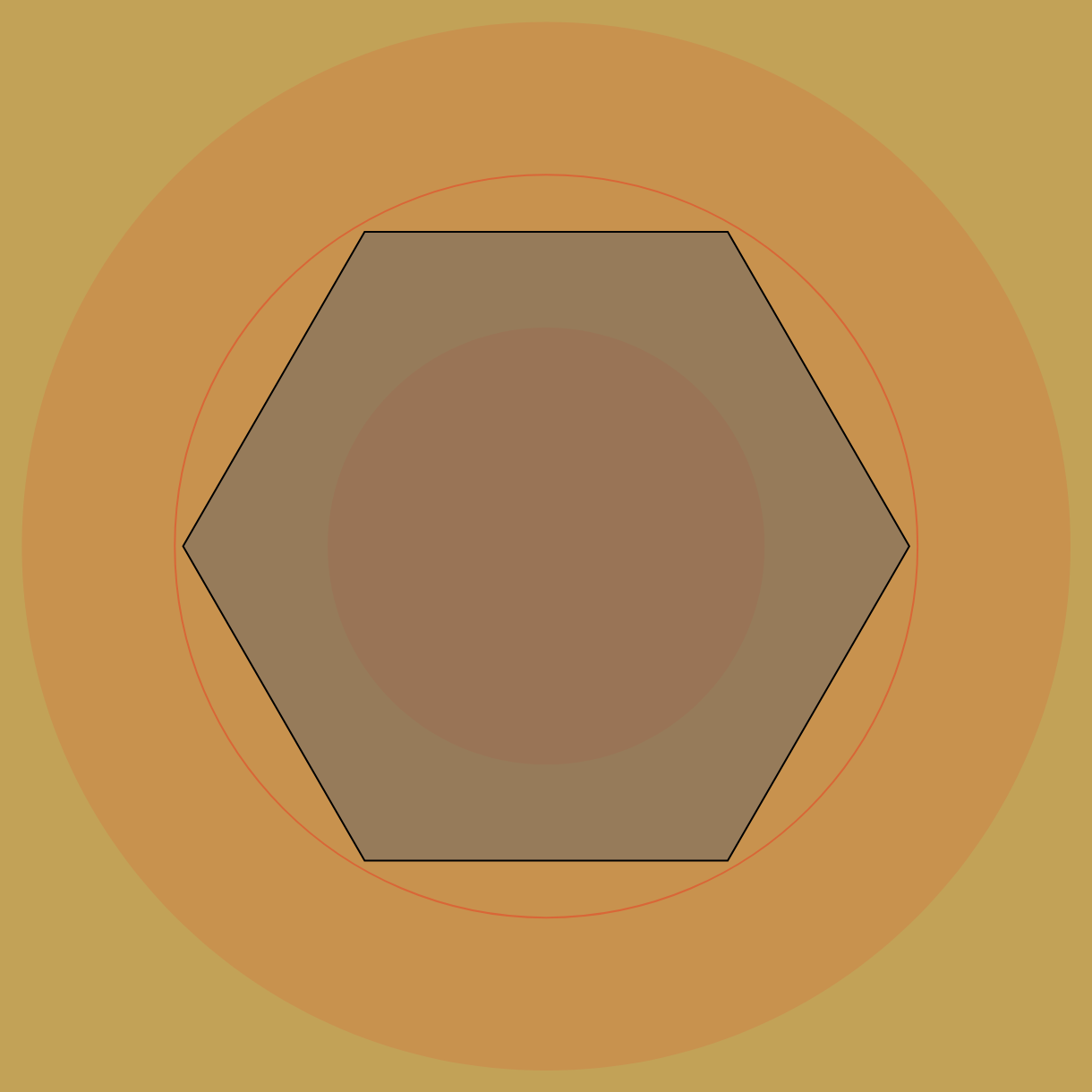
When Blobby's not experiencing any 'noise' those points are generated by thetaInc steps around a circle (360°). The smaller the thetaInc, the more circular Blobby becomes. To experiment with this feature, take the 'Perlin Noise' slider to zero and select various thetaInc values using the slider. (If you don't want Blobby to rotate, click the 'H' button to (H)old it in position.)

As the figure to the left indicates, Blobby is 'circular' when thetaInc = 1°.
It's Alive!?!

With the settings described previously, Blobby sits motionless, gray and circular. If the noise is set to .05, Blobby becomes alive! (We made him green, courtesy of the 'Blobby' color picker!)
How did we do this? By using a small amount of Perlin Noise!

Small, random variations in Bobby's radii (courtesy of Perlin noise) make the shape undulate but not wildly so. If the noise is increased however, the shape becomes more bumpy. (see the blue Blobby?!)
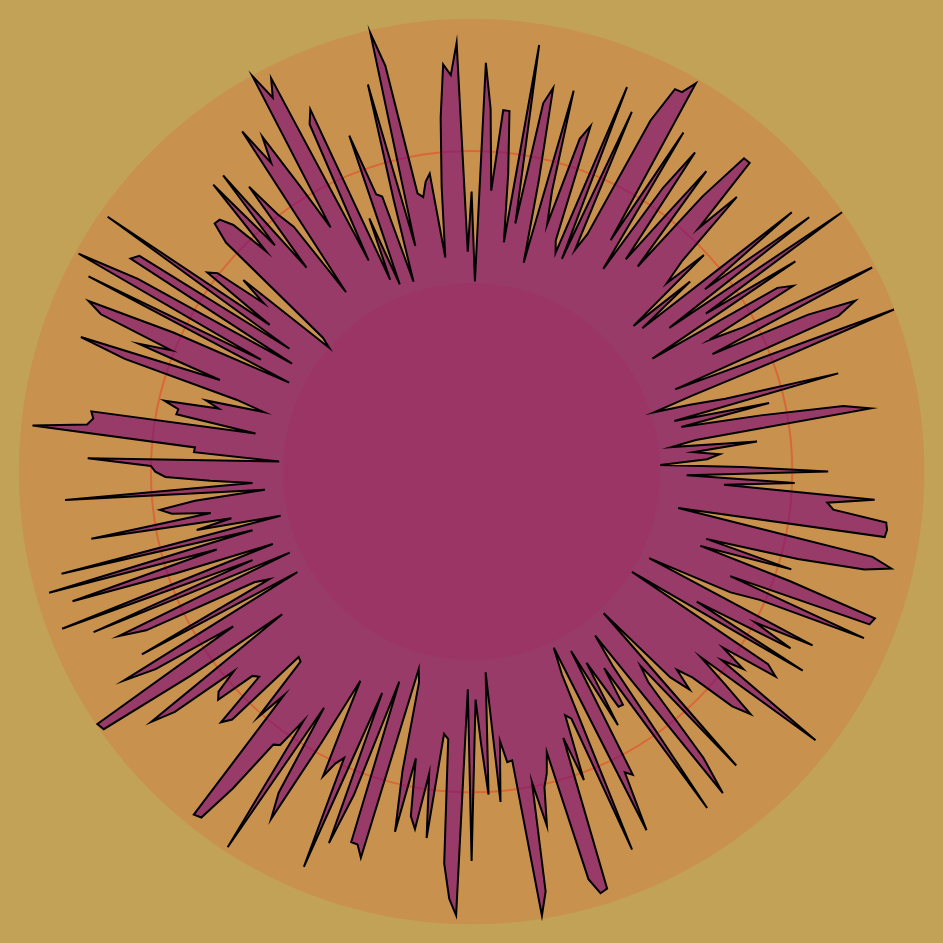
While larger noise values make Blobby more 'spikey' it's nothing if we use standard random number generation for the radii. By hitting the 'N' button we turn off Perlin noise and use regular random numbers to make the radii. Look at Blobby now!
More Blobby Settings
By default, Blobby is shown in an animated state. To speed the animation, use the 'deltaInc' slider: as those values increase, Blobby becomes more agitated. A zero value for deltaInc freezes Blobby's shape.
If you click the 'F' button, Blobby will also '(F)reeze' in place. 'R' will cause Blobby to '(R)enew.'
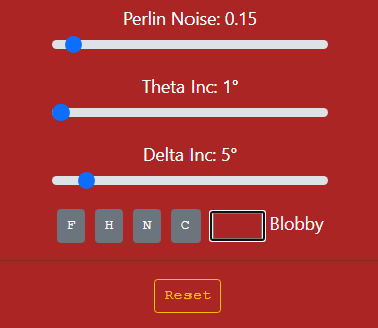
The'H'/'S' button '(H)'olds Blobby in place; the '(S)pin' button rotates Blobby clockwise.
The 'N'/'P' toggles between Perlin noise and randomly-generated radii values.
A colorful character
When Blobby is in a '(R)'enew mode, the 'B'/'C' button toggles between a default '(B)'lobby color (or a user-defined Blobby color chosen with the color-picker) and 'C'olor cycling across the hue color wheel (0-360°).
To take Blobby back to its default red color, click the 'Blobby' label.
Reset/Renew
If Blobby is in a (F)reeze state, you can renew it once by just clicking the canvas.
A push of the 'Reset' button sets Blobby back to 'factory settings'.
Wanna know more?
Check out Daniel Shiffman's Perlin Noise Explanation at The Coding Train. It's quite excellent! Also, see how Perlin Noise was (is) used in the entertainment industry.
Watch our movie clip inspiration.