Behind the 8 Ball?

Kind of. The ultimate goal of this app is to provide the framework for a 'Magic 8 Ball' simulation where we 'shake' the ball and a random phrase appears in the window. This was inspired by our Pondering app where we showed random phrases in a canvas.
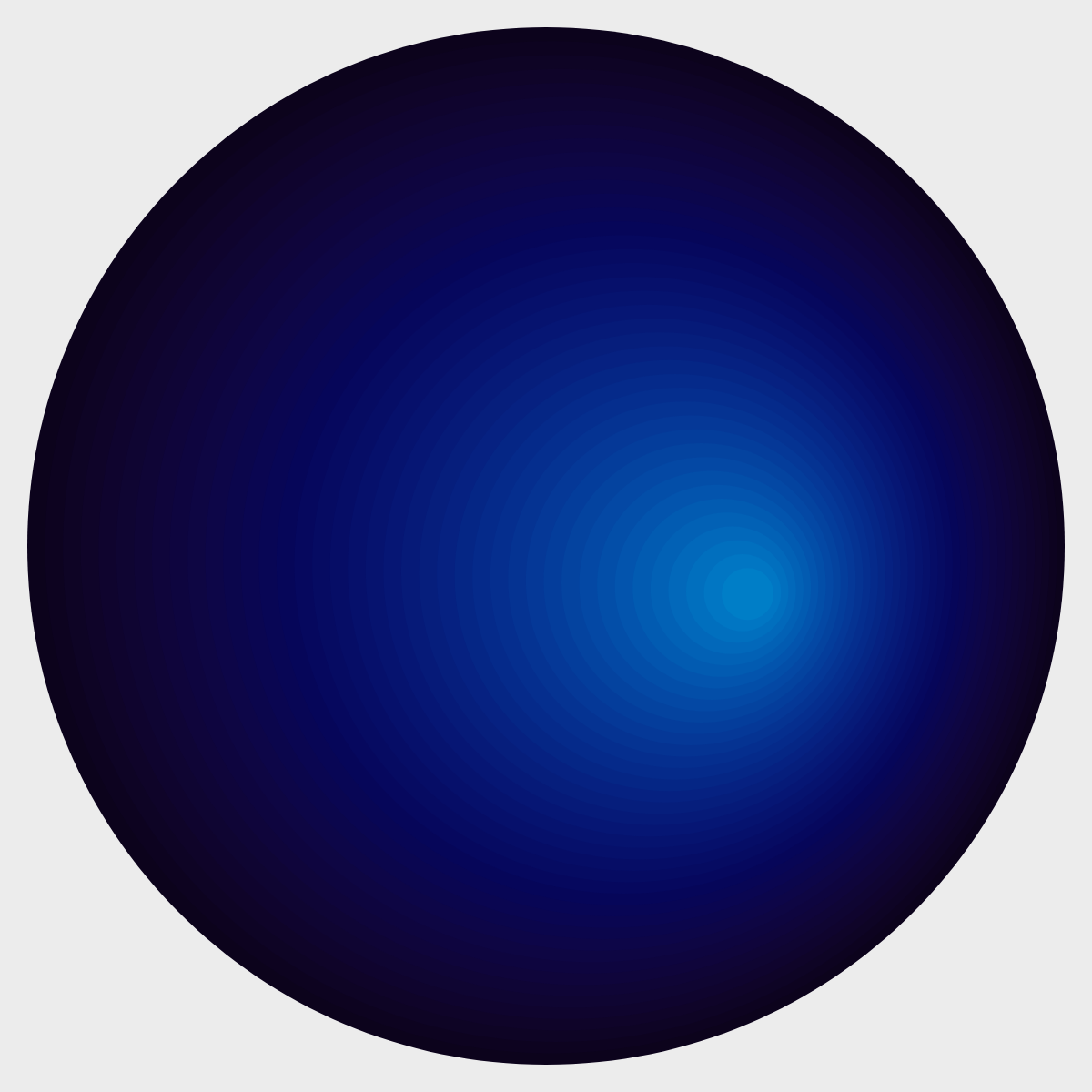
The spherical ball appearance can be made by increasing the number of layered 'steps' in our graphic. The sliders allow you to change this value and 'magically' the stepped circles become a sphere.
Other sliders allow you to change the colors of the 'shine spot' and the base circle. A 'click' of canvas unlocks the shine-spot location and you can use the mouse to move it's location around. Notice our coordinate system? It's origin is at the canvas center and its based on a traditional Cartesian coordinate system as our results paragraph below the picture demonstrates.
We can hide/show (toggle) the appearance of the 'shine spot' radius (the distance of the shine spot from the origin as well as a border on each of the steps with our handy toggle buttons.
Have we regressed?!?
Certainly!
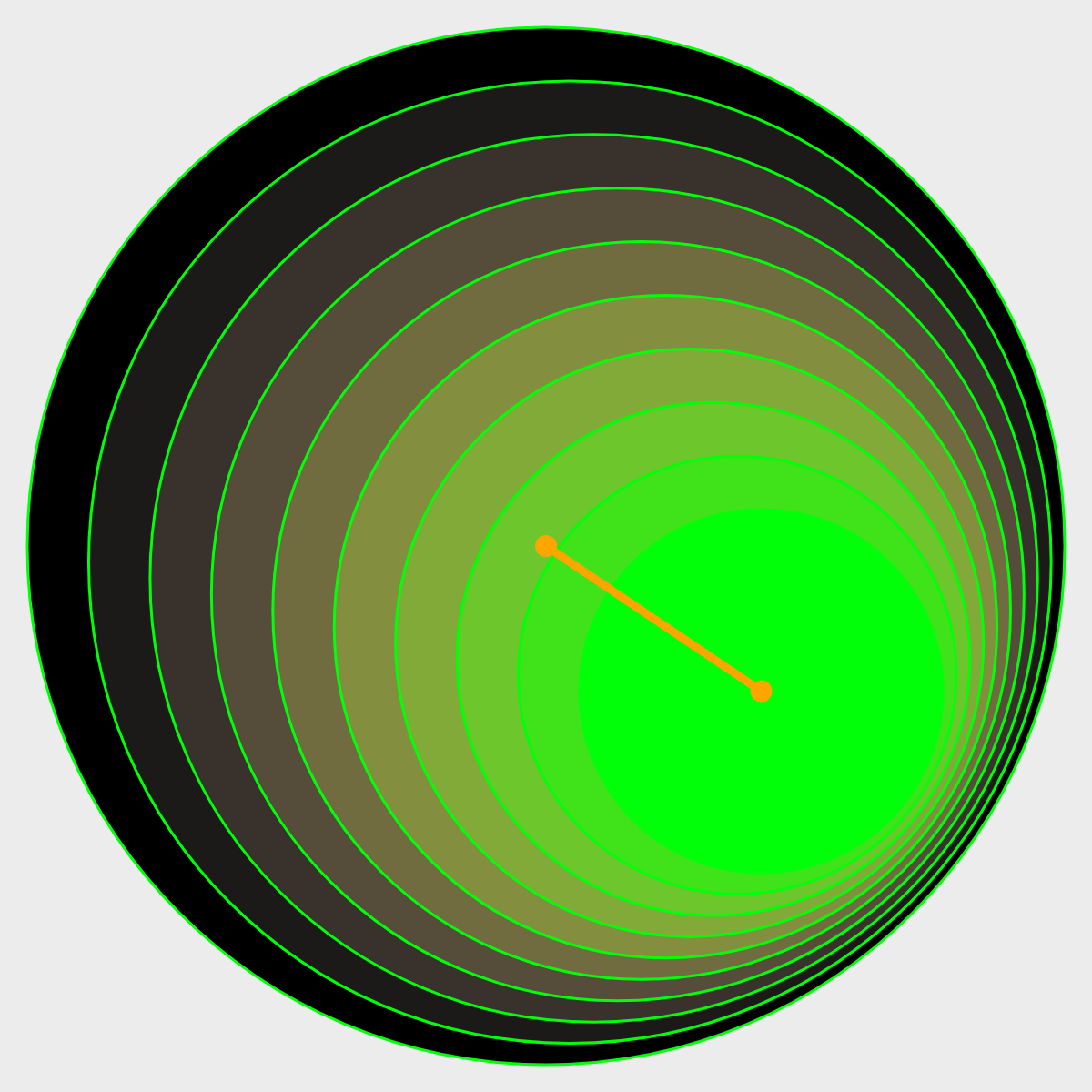
But not in the way you think. The layer computations where the location, radius and color information of each 'step' had to be computed using a 'linear transformation' which could have be been done using a 'point-slope' form of a line, but why do that?!
P5JS features a map function that takes care of those pesky details. Each parameter (radius, coordinate, color feature) was mapped to the layer number in a loop and wow: we have our cool result.
Here's the loop we used to build up our image:
for(var i = 1; i <= numSteps; i++){
    xc = map(i, 1, numSteps, 0, ux);
    yc = map(i, 1, numSteps, 0, uy);
    var myH = map(i, 1, numSteps, hue(baseColr), hue(shineColr));
    var myS = map(i, 1, numSteps, saturation(baseColr), saturation(shineColr));
    var myB = map(i, 1, numSteps, brightness(baseColr), brightness(shineColr));
    myA = map(i, 1, numSteps, alpha(baseColr), alpha(shineColr));
    var myColr = color(myH, myS, myB, myA);
    myDiam = map(i, 1, numSteps, ballDiam, shineDiam);
    if(shouldShowStroke){
        strokeWeight(1);
        stroke(strokeColr);
    }else{
        noStroke();
    }
    fill(myColr);
    circle(xc, yc, myDiam);
}//end loop
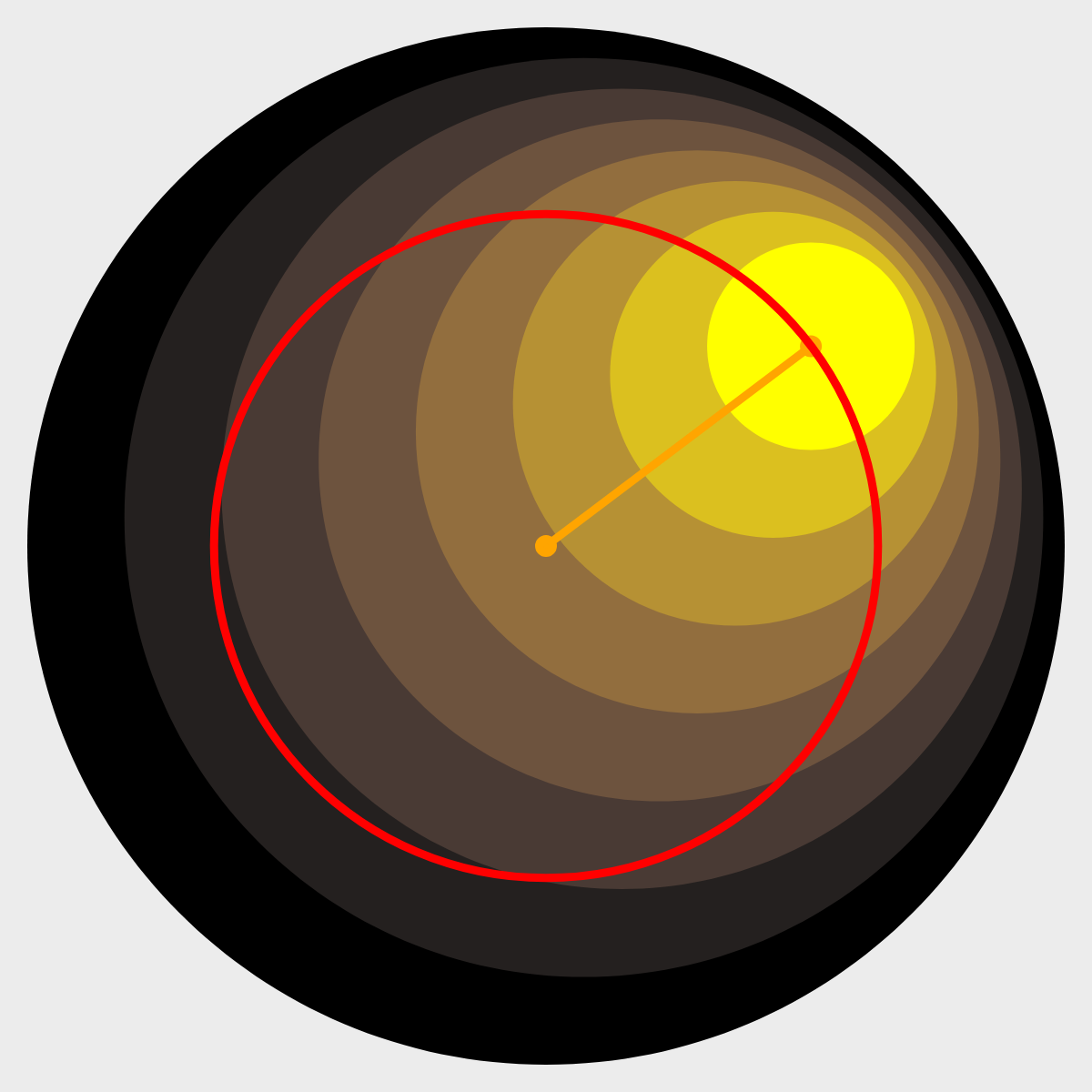
We can constrain the 'shine spot' to stay within the base circle using the constraint controls in the 'Shine Spot' section. This will become a necessity when we use this software to create our "Magic 8 Ball" simulation. The constraints can be turned on and off using the provided toggle button.
...loading...
Coordinates
Coordinates
Shine Spot Controls
Base Circle and Canvas Colors